Chapter 4 of 4 · 3D with AI series
Text to 3D prompt guide: how to write prompts for 3D models
The prompt is the only thing you give Text to 3D, so it decides most of the result. The good news is that you do not need clever tricks. A short, concrete description works better than a long, flowery one.
This chapter gives you a simple formula and twelve example prompts to copy. It is part of the 3D with AI beginner's guide.
The short answer
A good text to 3D prompt describes one object in a single line: what it is, what it is made of, its style, and two or three details. Leave out backgrounds, camera words and long stories. Change one word at a time and generate again.
1Use the four-part formula
Build your prompt from four parts, in this order. You do not need all four every time, but the first one is required.
| Part | What to write | Example |
|---|---|---|
| 1. Object | What it is, in plain words | a small robot |
| 2. Material | What it is made of | made of painted wood |
| 3. Style | The look you want | cartoon, rounded edges |
| 4. Details | Two or three features that matter | big round eyes, two short legs |
Put together: "a small robot made of painted wood, cartoon style, rounded edges, big round eyes and two short legs".
2Describe one object, not a scene
The tool builds a single 3D object. Writing "a robot in a forest at sunset with mountains" asks for a scene, and the result is usually a confused mix. Write "a small robot" and, if you want a forest, make the trees as separate models.
Start with the noun. The first words of your prompt tell the tool the most, so put the thing itself first, then the details.
3Say what it is made of and what it looks like
Material and style words change the surface of the model. Compare "a mug" with "a glazed ceramic mug, speckled blue". The second tells the tool what the surface should look like.
- Materials: wood, stone, brushed metal, ceramic, plastic, leather, fabric, glass, clay.
- Styles: cartoon, low-poly, realistic, stylized, toy-like, carved, hand-painted.
- Colours: name one or two main colours, not ten.
4Copy and change these 12 example prompts
Paste any of these into the Prompt box of Text to 3D, then change a word or two to make it your own.
- a small cartoon owl standing on a tree stump, brown feathers, big yellow eyes
- a wooden toy robot, rounded edges, painted red, two round eyes
- a ceramic coffee mug, glazed blue with white speckles, thick handle
- a low-poly fox sitting, orange fur, white tail tip
- a stone garden gnome with a pointed hat, mossy texture
- a medieval wooden treasure chest with iron bands and a round lock
- a stylized dragon figurine, green scales, folded wings, small base
- a retro desk lamp made of brushed metal, round base, bendable arm
- a cute mushroom house with a red cap and white spots, round door
- a chess knight piece carved from dark wood, detailed mane, round base
- a smooth round potted succulent in a white ceramic pot
- a fantasy sword with a gold handle, blue gem in the guard, straight blade
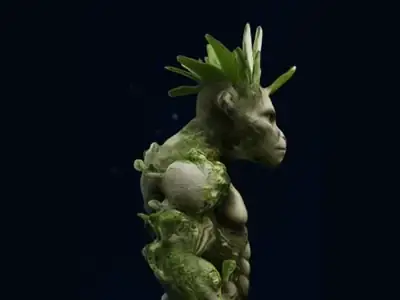
Examples that include a base, such as a stump, a stand or a round bottom, tend to give you a model that stands on its own, which is helpful if you plan to 3D print it.
5Leave these out
- Scenes and backgrounds. "In a forest", "on a beach", "at sunset".
- Camera and photo words. "Wide angle", "35 mm", "depth of field".
- Brand names and famous characters. Describe the look instead, such as "a red-capped plumber figure".
- Text on the object. Small letters rarely come out readable.
- Very long prompts. Past two lines, extra words usually add confusion, not detail.
- Exact sizes. Scale the model after, for example with Scale STL.
6Generate, compare, then change one thing
- Open Text to 3D, paste your prompt and press Generate 3D Model.
- Rotate the result and note what is wrong. Is the shape off, or the material, or a detail?
- Fix that one thing in the prompt with plain words and generate again.
- If you like the idea but not the take, keep the prompt and change the Generator Seed. Same words with a new seed gives a different version.
- Keep the best version and download it as GLB or STL.
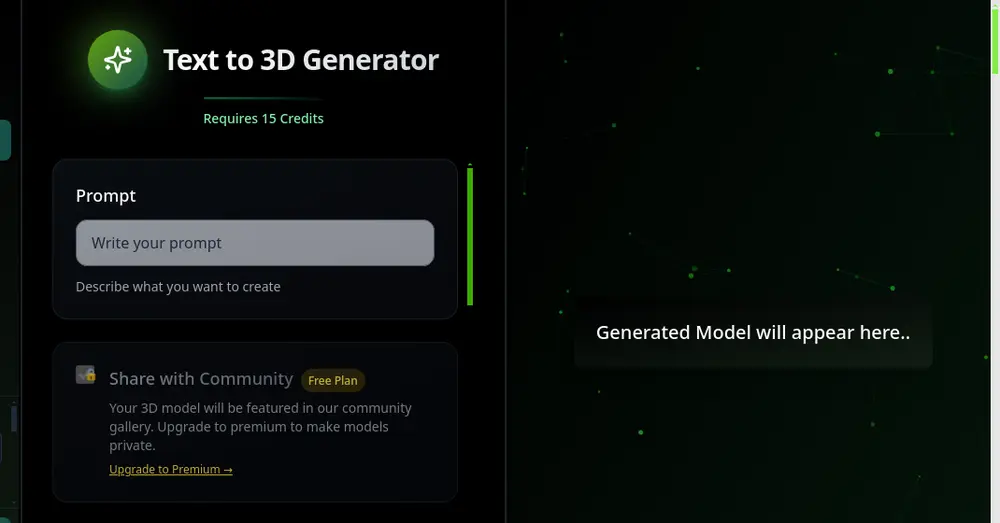
Making changes one at a time is the fastest way to learn what the tool responds to. For what to do with the finished file, see how to make a 3D model from text.
From a weak prompt to a strong one
| Weak prompt | Why it is weak | Stronger prompt |
|---|---|---|
| cool robot | No shape, material or style | a small robot made of painted wood, cartoon style, big round eyes |
| a dragon flying over a castle at night | A scene with three things | a stylized dragon figurine, green scales, folded wings, small base |
| mug with my name on it | Text is hard, and no material | a glazed ceramic mug, speckled blue, thick handle |
| a very detailed realistic sword with every engraving and a long story about its owner | Too long, vague about shape | a fantasy sword with a gold handle, blue gem in the guard, straight blade |
Frequently asked questions
How long should a text to 3D prompt be?
One line is enough, usually about 8 to 25 words. Name the object, its material, its style and two or three details. Longer prompts tend to confuse the tool.
Can I describe a whole scene in one prompt?
It is better not to. Text to 3D builds one object. For a scene, make each object as its own model.
Why do I get a different model from the same prompt?
Generation starts from a random seed. The same prompt with a different Generator Seed gives a different version. Keep the seed the same if you want to compare small changes in the wording.
Can I use famous characters or brand names in a prompt?
It is better to describe the look in plain words, such as the shape, the colours and the clothes, instead of using a name.
Try it now
It is free to start and runs in your browser. New accounts get free credits.