Chapter 3 of 4 · 3D with AI series
The best photos for image to 3D (and what to avoid)
The photo you upload is the biggest factor in how good your 3D model is. The AI can only build from what it can see, and it has to guess the rest. A clear photo makes those guesses easy.
This chapter shows how to take or choose a good photo in six steps. It is part of the 3D with AI beginner's guide.
The short answer
The best photo for Image to 3D shows one object, fully in the frame, on a plain background, in even light, from a slight angle above. Avoid clutter, cut-off edges, hard shadows, and transparent, thin or shiny things.
1Choose one subject
Pick a single object. If several things are in the picture, the tool has to decide which one you mean, and the model can end up with parts of two things fused together. Move other objects out of the frame, or crop the photo so only one is left.
For a set of items, such as a cup and a plate, make a model of each one separately.
2Use a plain background
A plain wall, a table or a sheet of paper behind the object makes its outline easy to see. A busy background, such as a patterned rug or a shelf of other items, makes the edge unclear. The tool page itself suggests a plain or uncluttered background for the best result.
Choose a background colour that is different from the object. A white mug on a white wall is harder than a white mug on a dark table.
3Light it evenly
Soft, even light is best. A window on a cloudy day, or a lamp bounced off a wall, works well. Hard shadows can be read as part of the shape, and a bright flash can wash out colours and details.
If one side is much darker than the other, move the object, or turn on a second light on the dark side.
4Shoot from a slight angle above
A straight front view hides the top and the depth. Stand a little to one side and a little above, so you see the front, one side and the top at once. This three-quarter angle shows the most shape in a single picture.


This example is a clear picture of one subject on a plain background. The 3D result keeps its look, and the AI added the parts that the picture could not show.
5Keep the whole object in the frame
Leave a little empty space around the object on all sides. If a corner, a handle or a foot is cut off by the edge of the picture, the model will be missing it or will invent it. Fill most of the frame, but do not touch the edges.
Use a sharp, in-focus photo. Tap on the object on your phone to focus before you shoot. A blurry picture gives a soft, blobby model.
6Upload it and check the back
- Open Image to 3D and click Upload a clear image to convert to 3D. The file can be PNG, JPG or WEBP, up to 10 MB.
- Press Generate 3D Model and wait about 1 to 3 minutes. One model costs 20 credits.
- Rotate the result and look at the back and the underside. These are the parts the AI had to guess.
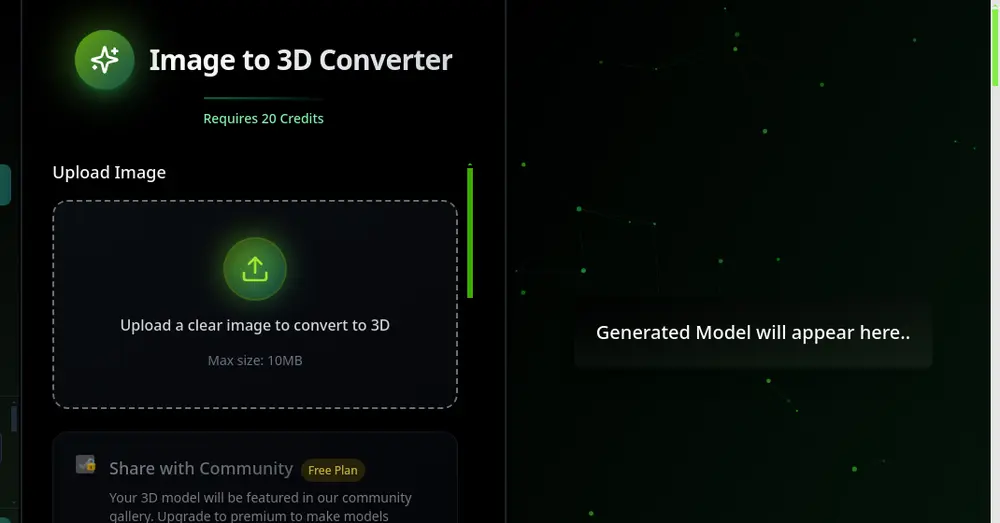
If the back looks wrong, try another photo of the same object from a different angle. You can also read the full lesson on how to turn a photo into a 3D model.
Photos that fail, and why
If your result is poor, check this list before you change anything else.
| Photo problem | What goes wrong | Fix |
|---|---|---|
| Several objects | Parts of different objects join together | Crop to one object |
| Cluttered background | The outline is unclear | Retake on a plain background |
| Parts cut off | The model is missing or invents those parts | Move back and keep a margin |
| Transparent things such as glass | The tool cannot see the shape through them | Use an opaque object, or expect a rough result |
| Very thin parts such as wire or hair | They vanish or come out rough | Choose a thicker subject |
| Shiny or mirror surfaces | Reflections look like shapes | Use matte surfaces or diffuse light |
| Strong shadows or dark photo | Shadows look like geometry | Use soft, even light |
| Small, blurry or heavily filtered picture | The model is soft and lacks detail | Use a sharp photo at a good size |
For a person or a pet turned into a figure, use Photo to 3D Figurine. To compare image to 3D tools, see the best image to 3D AI tools.
Frequently asked questions
What is the best kind of photo for image to 3D?
One object, fully in the frame, on a plain background, in soft even light, shot from a slight angle above. A sharp photo with a little empty space around the object works best.
Can I use a photo with a busy background?
You can, but the result is usually worse because the outline of the object is harder to see. Retake the photo on a plain background, or crop it so the object fills the picture.
Can I turn a transparent or shiny object into 3D?
It is hard. Transparent and shiny things hide their real shape, so the model may be rough or have missing parts. If you can, use a matte, opaque object, or photograph it in soft, diffuse light.
How big can the photo be?
The Image to 3D tool accepts PNG, JPG and WEBP files up to 10 MB. A sharp, normal-sized phone photo is fine.
Why does the back of my model look wrong?
A single photo cannot show the back, so the AI guesses. Try a photo taken from a different angle, or a simpler object, and always rotate the result to check all sides.
Try it now
It is free to start and runs in your browser. New accounts get free credits.